How to Add a Digital Signature to a PDF: 6 Easy Methods (2026 Guide)
Originally published on 7 December 2023. Last updated on 16 December 2025.
In today’s fast-paced business world, the PDF has become the universal standard. In fact, 98% of businesses use PDFs as their default file type for external communication. This ubiquity has made the ability to efficiently and securely sign a PDF document a critical skill. As organizations shift towards fully digital workflows, the need to digitally sign agreements, contracts, and forms without printing a single page is no longer a convenience—it’s a necessity.
The transition to digital signing is accelerating rapidly. The global digital signature market is projected to reach $238.42 billion by 2034, showcasing a monumental shift in how we approach document authentication. Whether you are approving a proposal, finalizing a legal contract, or completing enrollment forms, knowing how to add a digital signature to a PDF file is essential. This article explores six distinct methods, from highly secure, encrypted solutions to quick, informal options, helping you choose the right approach for any situation.
The Growth of Digital Signatures and Signing PDF Documents
Because more business is happening online than ever before, the global electronic signature (e-signature) software market is experiencing rapid expansion. MarketsandMarkets reveals that the global digital signature market size was valued at $5.5 billion in 2022, with projections to reach $25.2 billion by 2027.
According to Statista, over 1.7 billion digital documents were signed globally in 2024, reinforcing how essential PDF signing workflows have become in enterprise and SMB environments.
This rapid expansion is fueled by several key factors:
- The Digitalization of Business: Companies are moving away from paper-based processes to streamline operations and reduce costs.
- Enhanced Efficiency: Cloud-based e-signature solutions allow for instant file transfer and signing, dramatically reducing turnaround times for contracts and approvals.
- Rapid Authentication: Modern platforms provide robust methods for verifying a signer’s identity, ensuring the integrity of the signing document process.
- Heightened Security Requirements: With increasing privacy concerns, the advanced encryption and audit trails offered by digital signing are crucial for protecting sensitive information and meeting compliance standards like ISO/IEC 27001.

When Do You Need to Sign a PDF?
The need to Sign PDF files spans nearly every industry and role. From legal practitioners finalizing court documents to healthcare providers handling patient consent forms, digital signing is integral to modern workflows.
Consider these common scenarios where you might need to sign a PDF document:
- Contracts and Agreements: Executing sales contracts, partnership agreements, and non-disclosure agreements.
- Human Resources: Onboarding new employees with offer letters, tax forms, and policy acknowledgments.
- Finance and Accounting: Approving invoices, purchase orders, and expense reports.
- Real Estate: Signing lease agreements, purchase offers, and closing documents.
- Client Services: Improving the client experience with quick approvals on proposals, statements of work, and service agreements.
In all these cases, a digital signature streamlines the process, enhances document security, and creates a legally binding record of consent.
6 Ways to Add Signatures to a PDF
In increasingly digital landscapes, consider the following six methods to sign a digital document or PDF online:
1. Leverage an E-Signature Platform
DocuSign’s 2024 Digital Maturity Report shows that 81% of organizations now rely primarily on e-signature tools for PDF-based agreements and approvals. This statistic validates the importance of using a dedicated signing platform rather than manual or improvised signing methods.
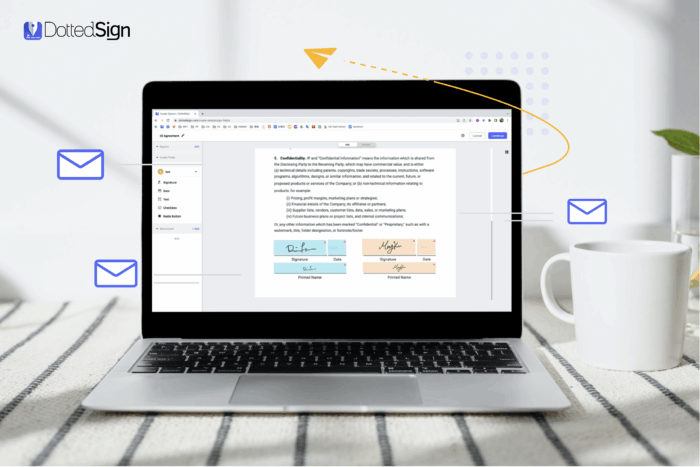
An e-signature solution like DottedSign considerably simplifies PDF document signing, ultimately ensuring the reliability of a signature, the identity of the signer, and a valid framework for electronic signatures. After creating a reusable signature, simply:
- Click “Create New Tasks,” and choose “Sign Yourself.”
- Select your desired PDF file. Then, click “Continue.”
- Now, you can add the signature, date, text, radio button, and a checkbox to your document’s signature block.
- To insert a saved signature, drag and drop the signature field and adjust the size of the field to your specifications.
- Lastly, click “Continue” to confirm signing. The completed, signed document will be displayed under the “Completed” section.
DottedSign not only provides efficiency and convenience but also equips users with a variety of valuable features to fulfill even the most complex requirements. This includes signing documents via Mobile Panel, adding pre-filled information, and using DottedSign for Gmail.
2. Utilize PDF Editing Software
You can also leverage a comprehensive PDF editor, such as PDF Reader from Kdan Mobile Software, to streamline digital document signing. To add e-signatures with this platform:
- Open a PDF file with PDF Reader and look for the annotation toolbar at the bottom of the screen: Swipe left or right to see more tools.
- Tap the “Signature” tool on the annotation toolbar.
- Now, you will see a signature library that stores all the signatures you created. Simply tap one signature to add to the PDF or create a new one directly.
- Drag and resize the signature and then tap “Add” to attach the signature to the PDF.
- To remove the signature, tap the “More” button in the top right corner. Choose “Clear Signature” to remove it from the document.
3. Use the Screenshot-and-paste Method
Without access to a supportive tool or platform, you can also employ a screenshot as an electronic signature using the following steps:
- Take a screenshot of your signature or use a drawing tool to create an image of your signature.
- Open the PDF form you need to sign and insert the screenshot of your signature as an image onto the document.
- Adjust the placement of this image, resizing and repositioning the signature as needed within the document.
- Save the signed PDF with your signature screenshot in place.
Note: An electronic signature is not the same as a digital signature. You can read more about the difference between the two here.
4. Write Directly on the PDF
If you have a mouse or stylus handy, you can sign PDF documents directly. To do this:
- Launch the PDF document you want to sign in an editing tool or viewer.
- Now, access annotation tools by selecting the drawing or pen function within the platform.
- Manually write your signature directly onto the document using your mouse or stylus.
- After this, you can adjust the size, color, and thickness of your signature to meet your requirements.
- Save the signed PDF document with your digital handwritten signature applied.
5. Introduce Email Signature Integration
To seamlessly incorporate your email signature — typically containing your contact information and any relevant branding — into PDFs:
- Generate an email signature that includes your name, title, and necessary contact details.
- Save the email signature as an image, such as a PNG, or as an HTML file.
- Next, access the PDF document in a PDF editor or viewer and import the email signature image or HTML code into your PDF.
- Finally, adjust the placement as needed and save your digitally signed PDF.
6. Make Use of Voice Recognition Signatures
Finally, signers can consider employing a voice recognition signature as a more inclusive and user-friendly way to sign documents. Consider the following steps to eliminate the need for manual dexterity and provide an accessible signing alternative:
- Select and install a voice recognition tool that can translate spoken words into a visual signature.
- Follow the solution’s instructions and speak your name or chosen phrase.
- Then, allow the software to create a visual representation of your voice signature.
- Access the document in a PDF editor or viewer and insert the generated voice signature image into the PDF.
- Save the document with your voice recognition signature included.

Digital Signature vs Electronic Signature
Many users search for the difference between digital signatures and electronic signatures, especially when preparing legally binding PDF documents.
Electronic Signature (e-signature):
- A broad category that includes typing your name, clicking “I agree,” inserting an image of your signature, or drawing it with a mouse or stylus.
- Suitable for everyday approvals, agreements, and workflows.
Digital Signature:
- Uses cryptographic technology, identity verification, and certificate authorities (such as AATL) to ensure authenticity and prevent tampering.
- Ideal for sensitive documents, legal contracts, and compliance-driven environments.
The ESIGN Act and UETA legally recognize both electronic and digital signatures in the U.S., while the EU’s eIDAS regulation specifically classifies and protects digital signatures.
The Power of Electronic Signatures
While there are many ways to add your signature to a PDF file, the true power of modern e-signature solutions lies in their ability to transform entire workflows. Beyond simply enabling a remote digital signing process, these platforms offer unique value that makes business operations more secure, efficient, and sustainable.
- Legally Binding: The U.S. Electronic Signatures in Global and National Commerce Act (E-Sign Act) is a federal law, passed in 2000, that essentially grants legal recognition of e-signatures and records if all parties involved in the electronic transaction or agreement opt for digital signing.
- Highly Secure: With enhanced features like encrypted document delivery, password verification, and detailed audit trails, electronic signatures promote a more protected and tamper-proof signing experience.
- Efficient and Cost-Effective: By eliminating the need for printing, scanning, and mailing, electronic signatures dramatically accelerate business processes. This is a core component of deal acceleration software, helping teams close deals faster and improve the overall client experience.
Sustainable: According to The World Counts, half of all business waste is composed of paper — with U.S. workplaces using 12.1 trillion sheets of paper a year. By reducing the need for paper, ink, and physical storage, electronic signatures contribute to a greener planet.
Simplify Your Signing Process with DottedSign
Today, the need for quick and secure document signing and authentication is paramount. And with several methods for adding a digital signature to a document in PDF format, the right solution can be a game-changer.
DottedSign, with its versatile capabilities and user-friendly interface, emerges as a standout tool supporting both individuals and teams in meeting their electronic signature requirements. In addition to helping you sign PDF documents with ease, DottedSign empowers:
- A streamlined signing process: Automate your signing workflows, monitor real-time progress, and accelerate deal closures.
- Enhanced security: Ensure the highest quality security measures with encrypted document delivery, password verification, and an audit trail. Plus, you can safeguard document integrity with an AATL digital certificate.
- On-the-go convenience: Sign documents and assign tasks effortlessly using DottedSign’s web- and mobile-based apps — giving you flexibility and mobility in managing your workflows.
Ready to employ a solution that enables an improved PDF signing process? Take our product tour or request a demo to learn more about how DottedSign can support your e-signature needs.
Frequently Asked Questions
How do I add a digital signature to a PDF for free?
You can use free PDF tools, built-in OS features (like Preview on Mac), or free plans from e-signature platforms. For legally binding signatures, tools like DottedSign offer compliant digital signing.
Is signing a PDF digitally legally binding?
Yes. Digital signatures are legally binding under ESIGN, UETA, and eIDAS as long as identity, intent, and document integrity are preserved.
Can I add a signature to a PDF without printing?
Absolutely. Methods include drawing a signature, inserting an image, using PDF editors, or signing through e-signature tools.
What is the safest way to sign a PDF online?
Using a certified e-signature platform with audit trails, encryption, and AATL certificates is the most secure method.